

Platform
Automation: The Right Message to the Right Person When an Event Happens
Automatic notifications to your team and your customer when a quote is opened, approved or about to expire, or a payment due date approaches.
With admin and customer automation, send email and WhatsApp notifications on quote and payment events using ready-made system texts.
Features
What can you do with Automation?
Real business events
Quote opening and decision, quote expiry, payment due dates and customer receipts.
Admin and customer separate
Information for the team, reminders for the customer; two separate screens.
Email and WhatsApp
Each channel is turned on separately, off by default.
Ready system texts
Ready text in 13 languages; variables filled in automatically.
Smart customer recipient
The person in the quote, the primary contact or the account itself.
Sending that does not get in the way
A message error does not undo an approval or a payment.
How it works
Step by step
- 1
Choose the event
Open an event in admin or customer automation.
- 2
Turn on the channel
Turn on email or WhatsApp and choose the admin recipients.
- 3
Preview
Preview the ready system text read-only; no editing needed.
- 4
Monitor
See outgoing messages in Notification History.
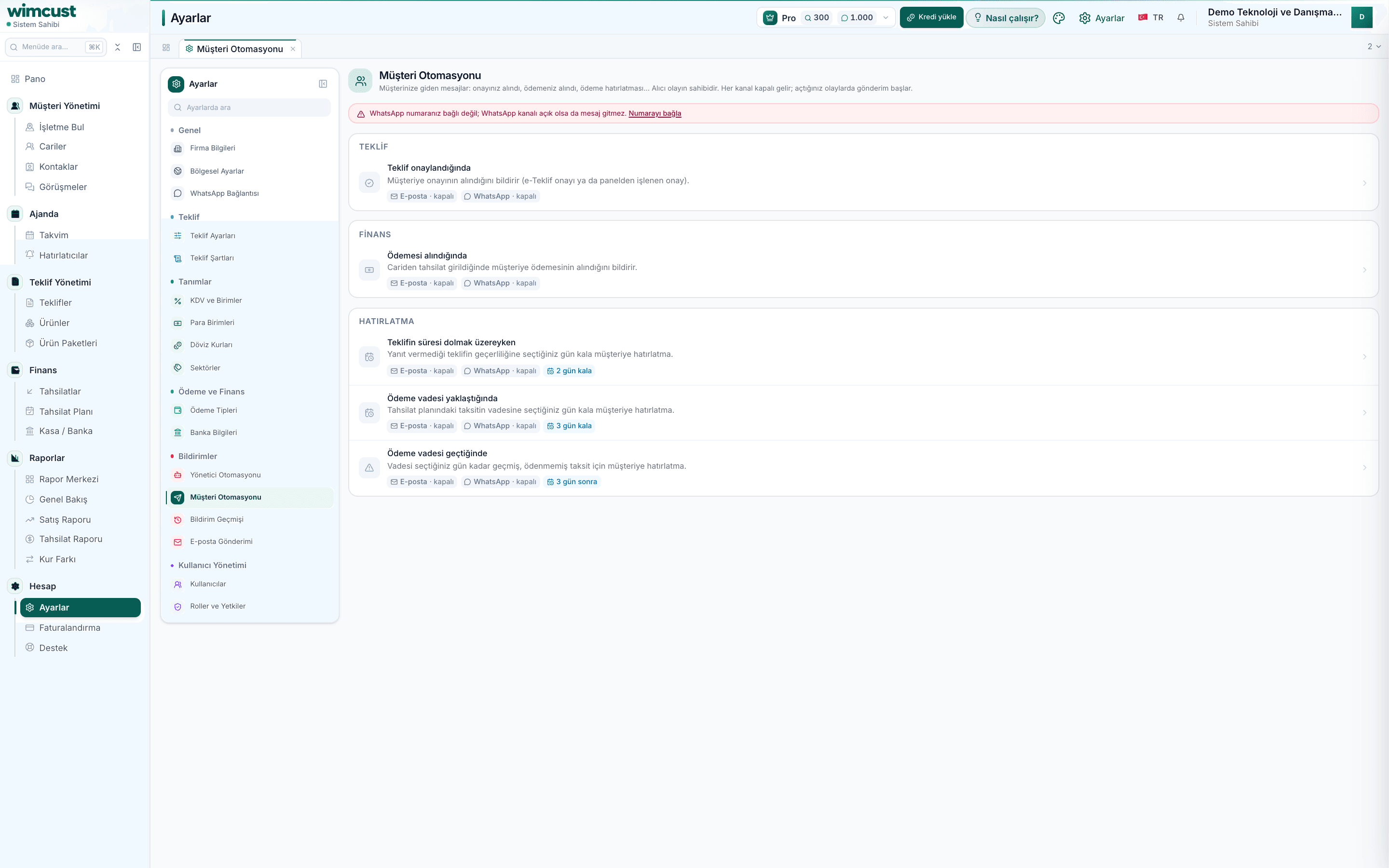
In a sales team, many messages are written the same way every day: "We have sent your quote", "Your payment is coming due", "The customer approved the quote". WimCust's automation ties these messages to events. When an event happens, a message goes out through the channels that are on, to the people you choose, using the system's ready-made text.
Two sides: admin and customer
The automation screen has two sections under Settings → Notifications:
- Admin Automation - informs your team. For example, a message to the sales owner when the customer opens a quote, or a daily list of overdue instalments to accounting.
- Customer Automation - goes to your customer. For example, a reminder as a payment due date approaches or when a quote is about to expire.
Events
The events that trigger automation come from the real flow of the product:
- The customer opening the online quote link for the first time
- The customer approving or rejecting the quote
- A quote decision made from the panel
- A quote's validity period ending
- A payment being entered (receipt to the customer)
- Collection instalments that are coming due and those that are overdue
- Payment reminders to the customer and quote expiry reminders
Timed events (due dates and expiry periods) are evaluated at your company's reminder time. One list per day goes to the manager; the customer gets one message for each instalment or quote. Sends are recorded so the same notification is not sent again.
Channels
There are two channels for every event: email and WhatsApp. Each channel is turned on separately and is off by default. No message goes out until you turn it on.
- WhatsApp goes from your company's connected number. If the number is not connected, the channel appears inactive. See WhatsApp integration.
- Email goes out under your company's name. If you have set up your own email server (SMTP), automation emails go out from there; if not, the platform server is used.
Recipients
In admin automation, recipients are chosen per event and channel. The quote approval email can go to the sales manager and the overdue payments list via WhatsApp to the accountant: each event carries its own list.
In customer automation you do not keep a recipient list; the system finds the right person itself: the person selected in the quote, otherwise the account's primary contact, otherwise the account itself. The email that goes to the customer does not include a panel link.
Templates
Every event has a ready-made text for each channel; the text is provided by the system in 13 languages and cannot be edited. It goes out in your company's language; in quote events, the message to the customer is prepared in the quote's language. Variables in curly braces are filled in automatically: customer name, quote number, amount, due date and so on. A value that is empty is filled with "—".
You only switch events, channels and recipients on or off. Because the text is managed centrally, you automatically benefit when it is improved later. You can preview how the message will look in read-only mode.
Safe operation
Automation does not get in the way of your real work. Messages are sent after the operation completes; a message failing to send does not undo the quote approval or the payment record. The error is logged. When WhatsApp credits run out, the message is skipped and recorded.
Notification history
Every message that comes from automation appears in Notification History with its event name, recipient type (team or customer), result and full text. The answer to "was the reminder sent to the customer?" is on one screen.
Relationship to reminders
Calendar reminders and due-date advance notices are also managed in the Reminder group of Admin Automation. So all automatic messages that go to the team are set up in one place.
Recommended automations to start with
- Online quote first opened → WhatsApp to the sales owner. Calling while the customer is reading the quote is the best time.
- Quote approval → email to the manager. Let everyone know about the won deal.
- Overdue payment → daily list to accounting. So an overdue receivable does not slip by.
- Payment reminder → to the customer. A polite reminder before the due date often makes a collection call unnecessary.
Start with a small number of automations, watch the results in Notification History, then expand.
Frequently asked about Automation
Are automations on at first setup?
No, every channel is off by default. No message goes to anyone until you turn it on.
In which language is the message to the customer?
The text is in your company's language; for quote events it is prepared for the customer in the quote's language. The text is provided by the system in 13 languages and cannot be edited.
Can I send from my own email address?
Yes, if you define your own SMTP server in Settings → Email Sending, automation emails go out from there.
Is the team notified when a payment is entered?
No. When a payment is entered, only the customer receives a payment receipt (if the channel is on). The team gets instalments coming due and overdue in a daily list.
Features used together
Multi-Language and Multi-Currency: 13 Languages, Automatic Rates, Per-Line Currency
WimCust works in 13 languages; your main currency follows your country, rates come automatically from the TCMB or ECB, and quote lines can be in foreign currency.
See detailsReports and Report Center: Measure Sales, Collections and Your Team
Sales funnel, conversion, rep scorecard, collection ageing and exchange difference reports; detailed breakdowns and Excel from the Report Center.
See detailsWhatsApp Integration: Customer Communication From Your Company's Number
Connect your company's WhatsApp number with a QR code; send quote links, intro messages, automation and reminders from your CRM.
See detailsSign up and find your first 60 prospects for free
Try Automation today
The Starter plan is free forever. Open your account without a credit card and create your first customer card in minutes.