

Customers
Calendar and Reminders: Never Forget a Customer Follow-Up
Follow-ups that come out of conversations are collected in the calendar; when the time comes you are reminded by panel, email or WhatsApp.
Plan customer follow-ups in the calendar, complete or postpone them. Reminders arrive as panel notifications, email and WhatsApp.
Features
What can you do with Calendar and Reminders?
From conversation to follow-up
The reminder is set together with the interaction record and stays attached to the account.
Complete or postpone
Close it with a single tap or move it to a new time.
Team scope
Authorized users see the whole team's reminders on one screen.
Three channels
Panel notification, email and the company's WhatsApp number; each is turned on separately.
Due date and expiry notices
Upcoming and overdue instalments, quotes about to expire.
How it works
Step by step
- 1
Set the follow-up
Choose the date and time of the next step in the interaction record.
- 2
Choose channels
Set which reminder goes to whom through which channel.
- 3
Act when the time comes
Go from the notification to the calendar, then complete or postpone.
Most of the opportunities lost in sales are customers who were told "I'll get back to you" and never heard from again. WimCust's calendar and reminders turn every next step that comes out of a conversation into a dated task and remind you when the time comes. You do not have to rely on a separate calendar app, sticky notes or memory.
Where do reminders come from?
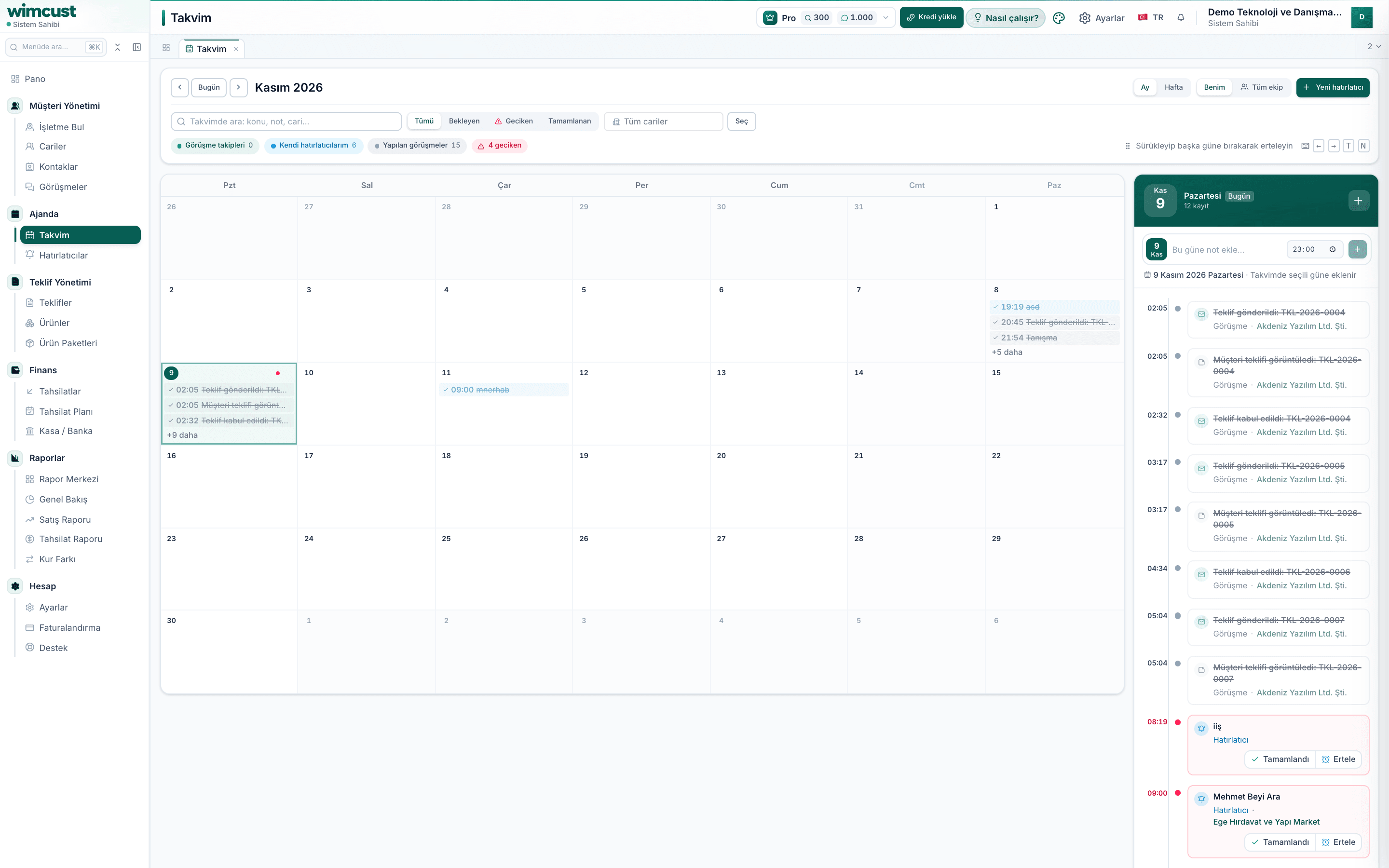
When you enter an interaction record, all you need to do is choose the follow-up date and time. The reminder appears both in the account's history and in your calendar. So a note like "Ask about the quote on Monday" is never detached from the customer's card; whoever opens the reminder also sees right away what was discussed.
The calendar screen
The calendar sorts your reminders by date. Those that are past due and not completed are set apart with a warning colour. Every reminder has two basic actions:
- Complete - the follow-up is done and it drops off the list.
- Postpone - the customer said "call next week"; the reminder moves to the new time.
You can also add personal notes to the calendar that are not tied to a customer: preparing for a trade show or an internal meeting, for example.
Team calendar
A rep sees their own calendar. A company administrator or team manager can switch to the team scope and follow the reminders of the whole team on one screen. This view is the fastest way to understand how many overdue items each person has and which customers are being kept waiting.
How do reminders reach you?
Reminders that come due are checked by the system at regular intervals (every 15 minutes) and are notified through these channels:
- Panel notification - in the web panel and on the mobile app's notifications screen
- Email - to the reminder recipient
- WhatsApp - from your company's connected WhatsApp number
Each reminder type turns each channel on and off separately, and each channel has its own recipient list. You can choose, for example, to send an email to accounting but not send a message to the manager's phone. Channels that go to a phone are off by default; no message goes to anyone until you turn it on.
Advance notices: due dates and expiry
Besides conversation follow-ups, WimCust tracks some dates itself and notifies you at the reminder time your company has set:
- Collection instalments that are coming due and those that are overdue
- Payment reminders to the customer
- Quotes whose validity period is about to expire
These notifications go to the manager as a single list per day, and to the customer once per instalment or quote. Sends are recorded so the same reminder is not sent twice. The settings for these types are in the Reminder group of the Admin Automation screen.
Notification language
Reminder texts and emails to the team are prepared in the company's default language. The company language is changed in Settings → Country and Language; 13 languages are supported.
Calendar on mobile
In the mobile app the calendar is fully functional: you can complete or postpone a reminder, switch to the team scope and add a calendar note. A rep in the field sets up and closes the follow-up after a visit in the same place.
Why does it matter?
The calendar is the "remembering" part of a CRM. The account card keeps the past, the calendar keeps the future. When the two work together, every customer's next step is clear and no opportunity falls victim to a rep's forgetfulness.
Using the calendar effectively
- End every conversation with a next step. A conversation without a follow-up date is often a file that never gets opened again.
- Start the day with the calendar. Work through the overdue items first, then today's; if you have to postpone, pick a realistic date.
- Note why you postponed. Why did the customer say "later"? Writing it in the interaction note makes the next call easier.
- Managers should look at the team scope once a week. Piling up overdue reminders is the first sign of an unbalanced workload.
The calendar works together with the cold-account list on the dashboard: the calendar shows the work you have planned, while the cold-account list shows the customers you forgot to plan for.
Frequently asked about Calendar and Reminders
How often are reminders checked?
Reminders that come due are checked and notified at 15-minute intervals.
Can I receive reminders on WhatsApp?
Yes, if your company has connected its WhatsApp number. Channels that go to a phone are off by default; turning them on and choosing recipients is up to you.
Can a manager see the team's calendar?
Yes, an authorized user can switch to the team scope and see all reps' reminders. A rep sees only their own calendar.
Can an automatic payment reminder be sent to the customer?
Yes, the payment reminder can be turned on in customer automation. The message goes out at the company's reminder time, once per instalment.
Features used together
Interaction Tracking: Every Call, Visit and Meeting on Record
Log calls, meetings, emails and visits on the account; contact history, last contact date and cold-customer alerts build up automatically.
See detailsBusiness Finder: Find Prospects on Google Maps
Scan Google Maps businesses by industry and location, filter them, see them on the map and move them to accounts with one click.
See detailsCustomer Account Tracking: Account Card, Contacts and Portfolio in One Place
Manage customer and supplier accounts, contacts, documents and rep portfolios on one screen with WimCust account tracking.
See detailsSign up and find your first 60 prospects for free
Try Calendar and Reminders today
The Starter plan is free forever. Open your account without a credit card and create your first customer card in minutes.