

Solution
Build a Prospect List by Industry and Area
Pull a fresh list of businesses by industry and location, share it with your team and export it to Excel.
Build a prospect list from Google Maps with WimCust; filter by phone, website and location details, share the list in the team pool and export it to Excel.
Sound familiar?
If you face these problems, you are in the right place
- Purchased company lists are outdated and inaccurate.
- Once a list stays in Excel, nobody knows who called whom.
- Separating businesses with a phone or without a website is done by hand.
With WimCust
How we solve it
Current source
The list is built from Google Maps records at the time of the scan.
Rich prospect card
Address, phone, web, rating, reviews and social profiles where found.
Has/lacks filter
Separate prospects that have or lack a phone, website or email.
Shared pool
The team sees the same list; an imported prospect moves to the importing person's portfolio.
Excel export
Download the pool as an Excel file.
For sales teams, the most valuable asset is a well-targeted prospect list. Ready-made purchased lists often contain outdated numbers and closed businesses. In WimCust you build the list yourself, when you need it and for the area you need: the Find Businesses screen scans current business listings on Google Maps and writes the results to your company's prospect pool.
How do you build the list?
- Type what you are looking for: one or more industries (up to six).
- Set where to look: a region, a typed city, or a point on the map with a radius.
- In the scan settings choose filters for rating, review count, website and open now.
- Start the scan; results appear in the pool as they arrive.
The job continues even if you leave the page while the scan is running; when you return, what was found is written to the pool. If you like, you can stop the scan midway and save what has been found so far.
What does the list contain?
Each prospect record holds details such as business name, address, location, phone, website, Google rating and review count; email and social media profiles are added when they can be found. The "Found on" and "Found via" fields tell you when and by which search a prospect first arrived. If a field comes back empty in a later scan, the old information is not erased.
Filtering and prioritizing
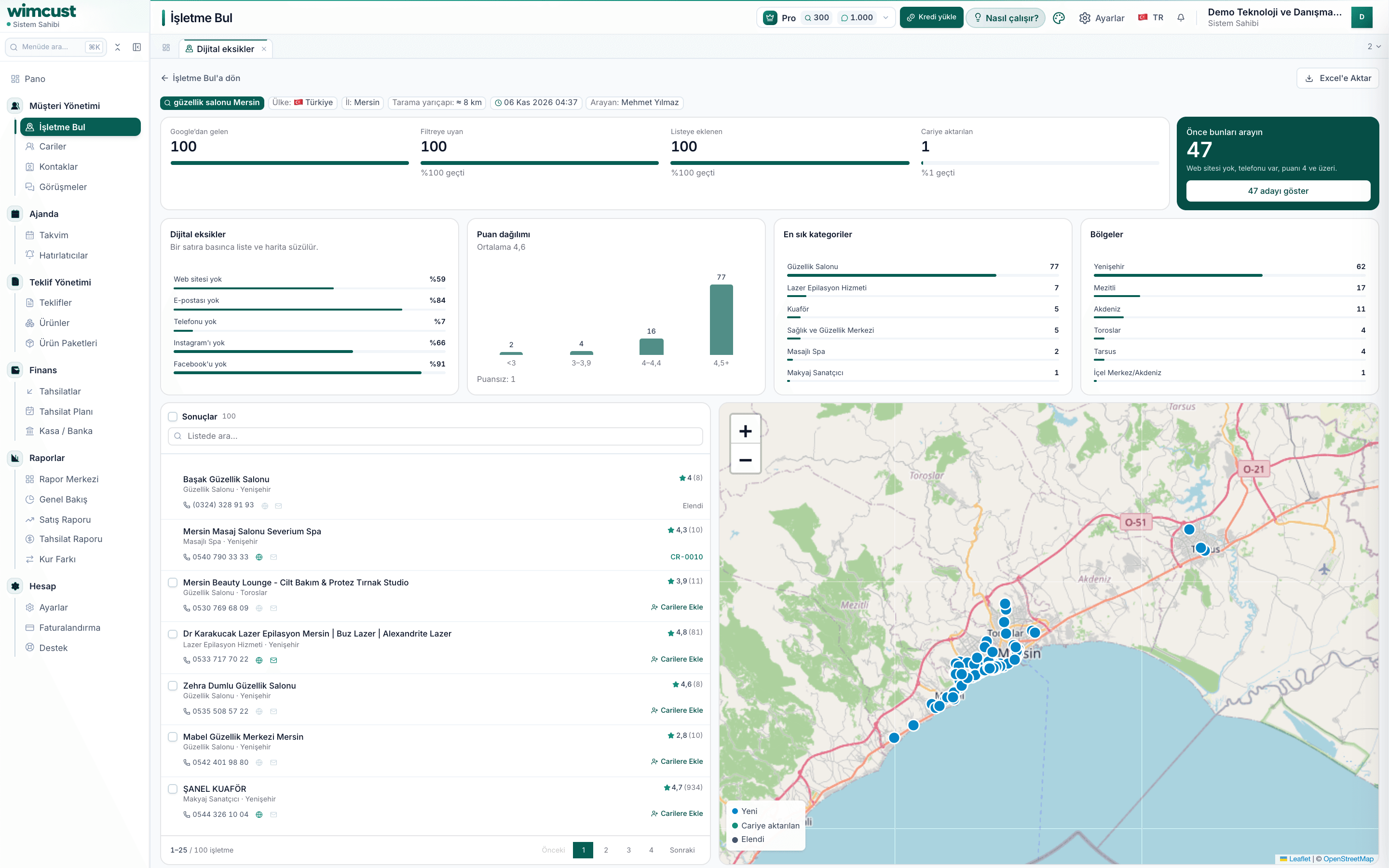
As the list grows, knowing what to focus on matters. In the Filter panel you can separate prospects that have a phone number, lack a website or are above a certain rating; the map updates with the same filter. The search detail page shows all the results of a search with their ratios: how many prospects have a phone, how many lack a website. New prospects with a phone number, no website and a rating of 4 or higher are marked as "priority prospects".
Team and Excel
The prospect pool is open to the whole company; your reps see the same list, and an imported prospect moves into the importing person's portfolio. The pool can be exported to Excel. To turn the list into customers, see the flow on the lead generation page, and for the account card itself, the account tracking feature.
Tips for a good list
- Write the industry name the way your customer describes itself on Google; for example "dental clinic" rather than "dentist".
- Instead of scanning a whole large city in one search, go district by district with smaller radii.
- Businesses without a website are the warmest prospects if you sell digital services; turn that filter on.
- Businesses with a high rating and many reviews are usually active and reachable.
- Rule out prospects you evaluated and found unsuitable; the list stays clean.
Seeing the list by area
Every row in the table is a point on the map. When you hover over a row the point grows, and when you click the point you jump to the matching row. If you are planning field visits, you can pick prospects close to each other on the map and group them into the same day. In the mobile app, accounts and prospects appear on the same map too.
Building your own list instead of buying a ready-made one has one more advantage: the moment you create the list, you start tracking it in the same place. Whom you called, whom you messaged and who became an account are visible on the pool screen; unlike an Excel file, it is not copied around and left to go stale.
Features used in this solution
Business Finder: Find Prospects on Google Maps
Scan Google Maps businesses by industry and location, filter them, see them on the map and move them to accounts with one click.
See detailsCustomer Account Tracking: Account Card, Contacts and Portfolio in One Place
Manage customer and supplier accounts, contacts, documents and rep portfolios on one screen with WimCust account tracking.
See detailsReports and Report Center: Measure Sales, Collections and Your Team
Sales funnel, conversion, rep scorecard, collection ageing and exchange difference reports; detailed breakdowns and Excel from the Report Center.
See detailsFrequently asked questions
Are email addresses always found in the list?
No. Email and social media are found only if they appear in the business's Google listing or on its website's home page.
If I stop the scan midway, are the results lost?
If you choose to save when stopping, what was found so far is written to the pool.
Is the list shared with other companies?
No. The pool belongs to your company; users on your team see it.
Other solutions
Switching from Excel to a CRM
Move your Excel customer list into WimCust with a preview import; go beyond Excel's limits with conversation history, reminders, quotes and team permissions.
See detailsCRM Software for Small and Mid-Sized Sales Teams
WimCust CRM software: lead generation, account tracking, conversations and calendar, quotes and e-Quote, payment collection, WhatsApp, automation, reports and a mobile app on one platform.
See detailsWhatsApp CRM for Customer Follow-Up
Send quote links, introduction messages and automatic reminders from your company's own WhatsApp number in WimCust; every message stays logged in notification history.
See detailsSign up and find your first 60 prospects for free
Start today and find your first customer this week
The Starter plan is free forever. Open your account without a credit card and create your first customer card in minutes.