

Team
Team and Permission Management: Roles, Permissions and Rep Portfolios
You decide who sees and can do what; separately for web and mobile.
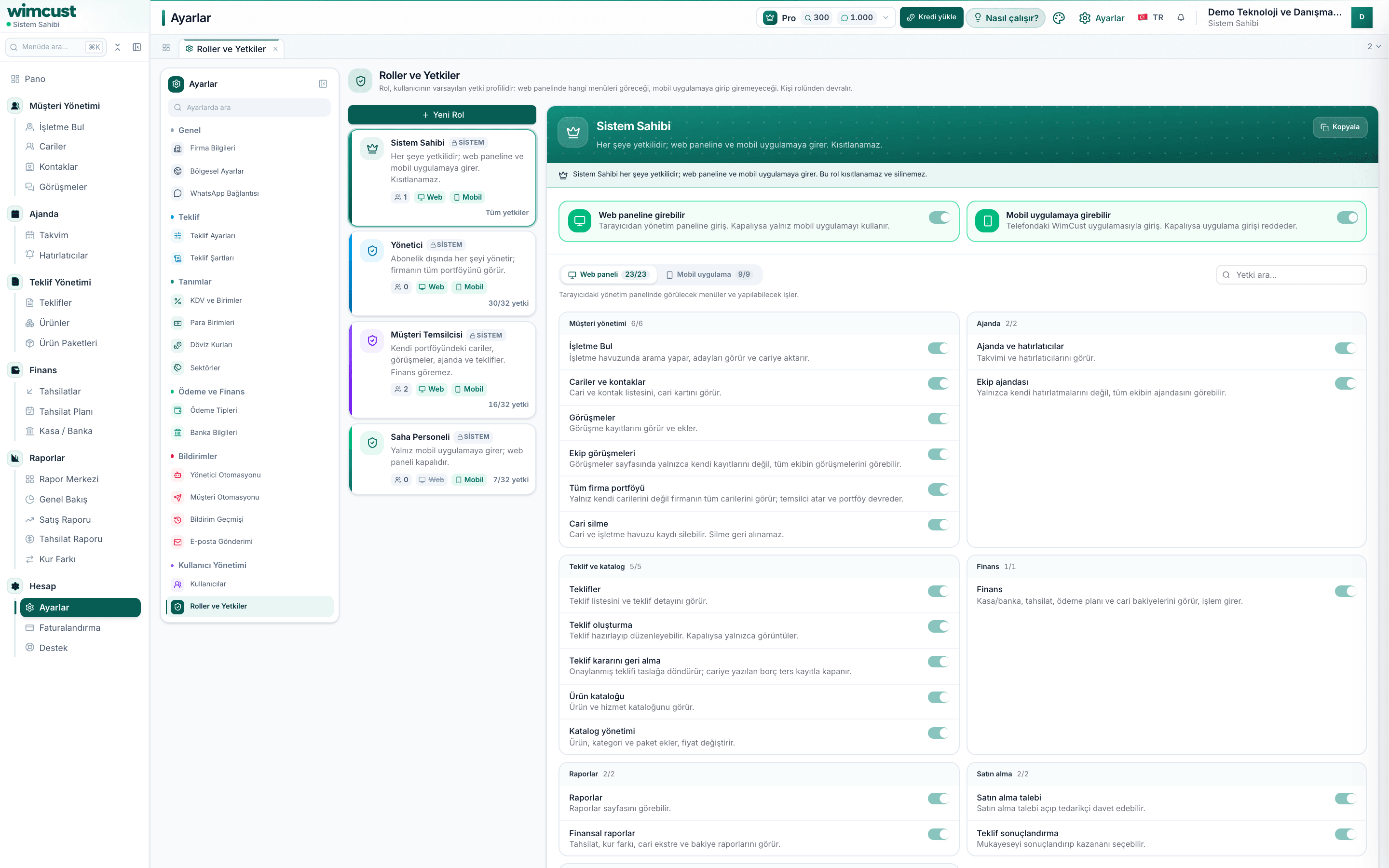
Set your team's permissions for web and mobile separately with ready-made system roles or your own roles; reps see only their own portfolio.
Features
What can you do with Team and Permission Management?
Four system roles
System owner, manager, rep and field come ready-made.
Your own roles
Create roles to suit your needs and pick permissions from groups.
Web and mobile separate
Sign-in channel and mobile screens are enabled per role.
Portfolio restriction
A rep sees only their own accounts, interactions and quotes.
Bulk portfolio handover
Accounts are transferred to another rep in one go.
Escalation protection
Nobody can hand out a permission they lack or change their own permissions.
How it works
Step by step
- 1
Review the roles
Look at the system roles and create your own role if needed.
- 2
Invite the team
Invite users together with their roles.
- 3
Assign portfolios
Distribute accounts to reps and hand them over in bulk when needed.
As a sales team grows, the "everyone sees everything" approach causes problems: reps step on each other's customers, finance information spreads unnecessarily and records get deleted by mistake. WimCust's team and permission management lets you give each user as much access as their job requires.
Ready-made system roles
Every company starts with four ready-made roles:
- System owner - accesses everything, web and mobile. Cannot be restricted; the administrator who opened the account is always in this role.
- Manager - everything except subscription actions.
- Sales rep - their own portfolio; no finance access.
- Field - the mobile app only.
System roles cannot be deleted, but their permission profiles can be edited. You can also create your own roles to suit your needs: "Sales Manager", "Accounting", "Intern" and so on.
Permission catalog
In the role editor, permissions are listed in groups and each one has a description. Some examples:
- All accounts - if off, the user sees only their own portfolio.
- Finance and finance reports - cash, collections and finance breakdowns.
- Catalog management - adding products and categories, changing prices.
- Undo quote approval - reversing an approved quote.
- Definitions, automation, company settings
- User management and subscription
- Hard-to-reverse actions such as deleting accounts
Sections in the menu are also trimmed by permission: a user without permission never sees the related menu. The real check is on the server, though; trying to open a page that is not in the menu by its address gets nowhere.
Per-person permissions
Besides the role, you can give a user a per-person permission list; this list overrides the role. When you remove the list, the user inherits from their role again.
Web and mobile are separate
The role editor also has a Mobile app tab. Whether a role can sign in to web and to mobile is turned on separately: the field team can sign in to mobile only, the office team to web only. Mobile screens are also opened with separate switches; for a screen to appear on mobile, both the mobile switch and the web permission for the data must be on. A channel whose sign-in is turned off is also closed in open sessions at the next request.
Rep portfolio
Every account is assigned to a rep. A user without permission to see all accounts:
- Sees only their own portfolio in the account list, interactions, quotes and reports.
- If they try to open another rep's account by its address, they get "not found"; even the fact that the account exists is not leaked to them.
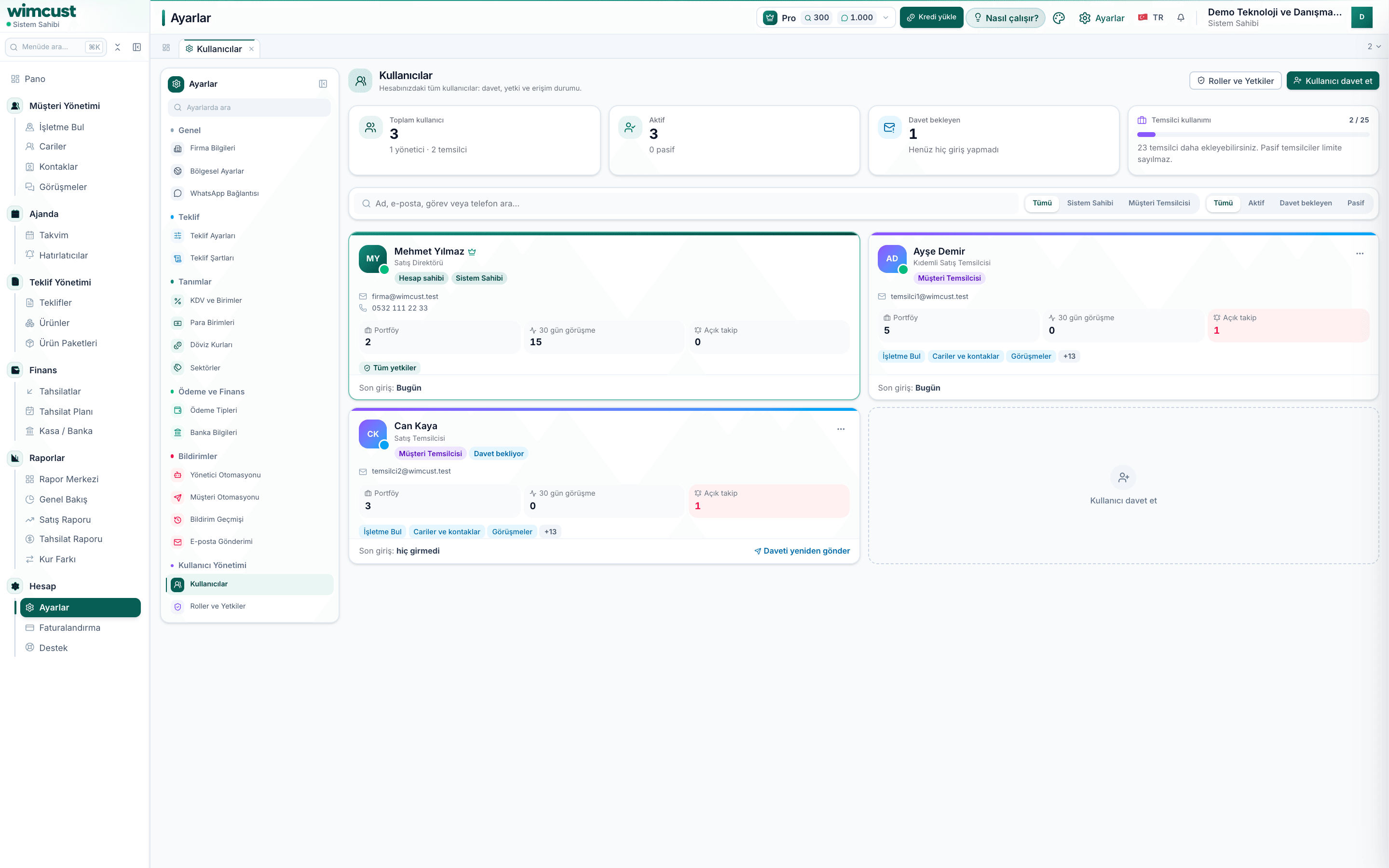
Portfolio handover is done in one go: with bulk assignment you move the accounts you select to another rep. A user who has a portfolio is not deleted; their portfolio is handed over first or the user is deactivated. An inactive user cannot sign in and does not count toward your plan's user limit.
The Business Finder pool, on the other hand, is the company's shared space; when a prospect is moved to an account, it enters the portfolio of the person who transferred it.
Users
You invite your team on the Users screen; a role is chosen during the invitation. Each user's role is shown with a badge, and their permissions are edited from a single window. The number of users depends on your plan's limit.
Privilege escalation protection
- Someone with the user management permission who is not the system owner can give neither a role nor a person a permission they do not have themselves.
- The system owner role cannot be assigned to someone else.
- Nobody can change their own role or permissions.
These rules make delegating permission management safe: when you give a team manager user management, they cannot hand out more than their own permissions.
Team views
An authorized user can switch to the team scope in the calendar and sees the rep scorecard in reports. This way, the team's workload and overdue items are tracked on one screen.
Tips for setting up roles
Start with the ready-made roles and create a new role only when a genuinely different need comes up; a small number of well-defined roles is easier to manage than per-person exceptions. Give hard-to-reverse permissions such as deleting and undoing approvals to few people. Open the finance permission only to those who deal with collections.
Frequently asked about Team and Permission Management
Can a rep see another rep's customers?
Not if their role lacks the permission to see all accounts. Even if they try to open one by its address, the record comes back as not found.
Can I make my field team use only the mobile app?
Yes. The ready-made Field role is for mobile only; in your own roles you can also turn web and mobile sign-in on and off separately.
Can I give a user permissions different from their role?
Yes, a per-person permission list overrides the role. When the list is removed, the user inherits from their role again.
What happens to the customers of a rep who leaves?
Their portfolio is handed over to another rep with bulk assignment, or the user is deactivated. A user with a portfolio is not deleted, so customer history is not lost.
How many users can I add?
The number of users depends on your plan. Inactive users do not count toward the limit.
Features used together
WimCust Mobile: Your CRM in the Field, in Your Pocket
With the WimCust mobile app, see your customers on the map, log contacts, manage your calendar, send quotes and find businesses in the field.
See detailsMulti-Language and Multi-Currency: 13 Languages, Automatic Rates, Per-Line Currency
WimCust works in 13 languages; your main currency follows your country, rates come automatically from the TCMB or ECB, and quote lines can be in foreign currency.
See detailsReports and Report Center: Measure Sales, Collections and Your Team
Sales funnel, conversion, rep scorecard, collection ageing and exchange difference reports; detailed breakdowns and Excel from the Report Center.
See detailsSign up and find your first 60 prospects for free
Try Team and Permission Management today
The Starter plan is free forever. Open your account without a credit card and create your first customer card in minutes.