

Moving from Excel to a CRM: A Step-by-Step Guide Without Losing Data
How to move from Excel to a CRM: data cleaning, column mapping, deduplication, import preview, portfolio assignment and getting the team on board. A step-by-step guide.
WimCust Team 6 min read
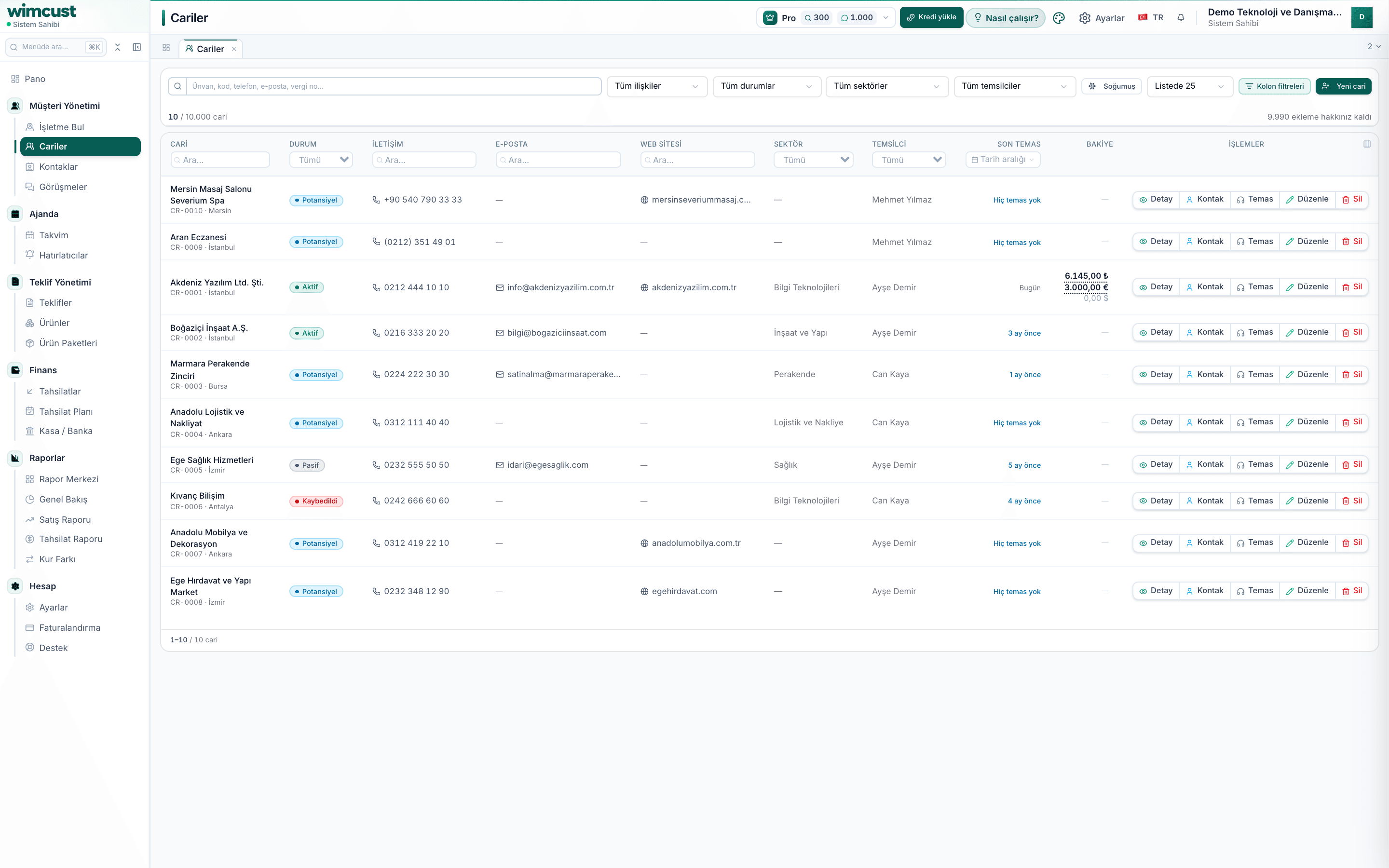
The decision to move from Excel to a CRM is usually made in a moment of crisis: a rep leaves and no one knows who was calling their customers, or an important quote is lost because it was not followed up. Decisions made in a crisis get implemented in a hurry; the Excel file is dumped into the new system as it is, and a few weeks later the team starts saying "the old way was easier." In this guide we walk through making the switch calmly and in a planned way, without losing data.
1. Decide what to move
You do not have to move everything. For most companies, the data needed for the switch is:
- Customer account list: company name, tax details, address, phone, email, industry, responsible rep.
- Contacts: the name, role, phone and email of the people at each company.
- Open items: pending quotes, planned follow-ups.
- Product list: the products and services you sell often, their prices and tax rates.
Moving conversation notes from years ago one by one is usually not worth the effort. Keep the old file as an archive; it can be consulted when needed. A clean start in the new system is better than carrying over the old mess.
2. Clean the data
Excel files get dirty over time. Do this cleanup before importing:
- Duplicate records: the same company may appear three times as "ABC Ltd.", "ABC Limited" and "Abc ltd". If you have a tax or VAT number, it is the most reliable way to find duplicates.
- Merged cells and headings: colored section headers, merged cells and total rows break the import. Every row should be a single record and every column a single piece of information.
- Phone format: "(555) 123-4567", "5551234567" and "+1 555..." may be mixed together. Bringing them to a single format makes later calls and WhatsApp messages easier.
- Number format: in amounts such as a credit limit or balance, "250.000,00" and "250,000.00" may be mixed. Check how your import tool reads each; in some countries "1.500" means one thousand five hundred, in others one and a half.
- Tax ID: tax and VAT numbers have a fixed length and format, and some have a check digit. Correcting wrongly typed numbers before the import prevents invoicing problems later.
- Empty and meaningless rows: review records that have only a name and no contact information. Are they really needed?
3. Map the columns
Download the CRM's import template and match your own columns to the ones in the template. The column you call "Company Name" may be "Account name" in the CRM, and the one you call "Owner" may be "Rep". If there is information with no counterpart in the template (for example "Customer segment"), you can move it into a suitable field such as industry, category or notes.
Using a unique code makes your job easier. If you give every account a code (for example the customer code in your accounting software), later updates and matching can be done through that code.
4. Try with a small file first
Before importing the whole list, try a sample of 20-50 rows. On the preview screen, check:
- Did the columns land in the right fields?
- Do special characters look right?
- Were the amounts read correctly?
- Which rows gave errors, and why?
A good import tool shows you which rows will be added and which are faulty before writing anything. If there are 3 errors in a 500-row file, seeing them before saving is much easier than checking 497 records one by one afterwards.
5. Run the full import
If the sample succeeded, upload the whole file, check the preview and apply. Duplicate records should be filtered out by code, tax number or company name; creating the same account twice is one of the most common mistakes of the switch. After the import, open ten random accounts and check their details.
6. Distribute the portfolios
If the "owner" column in Excel is filled in, accounts can be assigned to reps along with the import. If not, distribute them after the import with bulk assignment. Every account should have an owner; an account with no owner will most likely not be called. Reps seeing only their own portfolios improves both focus and data security.
7. Prepare the product catalog
If you will prepare quotes from the CRM, enter your products and services in the catalog: name, unit, price, currency, tax rate. If entering every product from scratch feels daunting, you can use free-form lines in your first quotes; some systems link saved free-form lines to the catalog, growing the catalog on its own.
8. Get the team on board
The technical part of the switch is done in a few days; the habit part takes a few weeks. For success:
- Set a single rule: "From today, new conversations are entered only in the CRM." Keeping a parallel Excel kills the switch.
- Keep it short: two lines of notes and the date of the next step are enough for each conversation. Long forms undermine the recording habit.
- Lead by example: the manager should record their conversations too and talk from the CRM screen in the weekly meeting.
- Mobile: for teams in the field, a mobile app lets the record be entered right after the visit.
9. Review at the end of the first month
After a month, look at these questions: Is everyone entering their conversations? What is the number of overdue reminders? Are quotes going out from the CRM? Did any data turn out to be missing or wrongly imported? This review lets you fix small problems before they grow.
Common mistakes
- Importing without cleaning and starting with duplicate records.
- Continuing to use the old Excel in parallel.
- Making every field mandatory and making recording hard.
- Leaving portfolio assignment for later.
- Not explaining to the team why you are switching.
A sample schedule for the switch
- Day 1: data cleaning and column mapping.
- Day 2: trial with the sample file, then the full import and checks.
- Day 3: user invitations, roles and portfolio assignment.
- Day 4: product catalog, quote terms and document design.
- Day 5: a short walkthrough meeting with the team and the start of the "CRM only" rule.
The schedule is realistic for a small team; with large lists the cleaning step may take longer. Every hour you spend on cleaning saves days you would spend fixing things later.
Relationship with your accounting software
If your customer codes are already defined in your accounting software, using the same codes in the CRM makes matching between the two systems easier. The customer record in the CRM is for sales and communication; official accounting records continue to live in your accounting software. Explaining this distinction to the team from the start prevents confusion such as "which balance is right?"
Switching with WimCust
WimCust's import has two steps: the preview writes nothing and shows the faulty rows; apply re-reads the same file and writes everything at once. The template can be downloaded, formats such as "250.000,00" and "1,234.56" are read correctly, new industries appearing in the file are created automatically, and deduplication is done by code, tax number and company name. Check-digit validation of Turkish tax IDs (VKN and TCKN) needs no setup. After the import, bulk rep assignment can be done from the customer tracking screen; free-form quote lines saved in the product catalog are linked to the catalog. The customer list and reports can be taken back to Excel at any time. See the CRM instead of Excel page for details, or open a free account.
- #Excel to CRM
- #data import
- #CRM setup
Frequently asked questions
How long does it take to move from Excel to a CRM?
The technical import can be done the same day with a clean file. Getting the team used to the new system usually takes a few weeks.
Should I move old conversation notes too?
In most cases no. Active accounts, contacts and open items are enough; keeping the old file as an archive is more practical.
How do I prevent duplicate records?
Remove duplicates by tax number and company name before the import and, if possible, give each account a unique code. Check the deduplication rules of the import tool.
Read these too
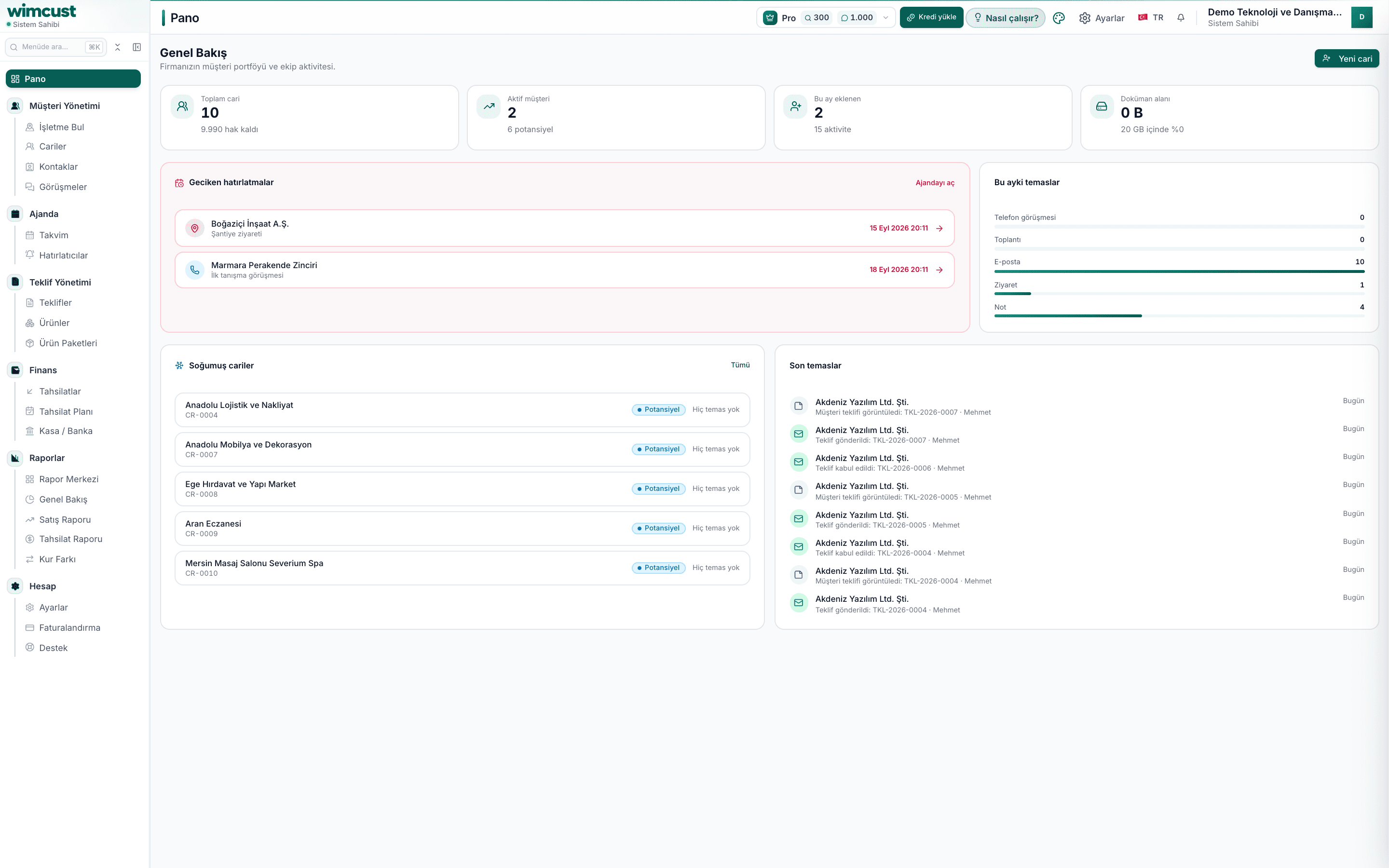
What Is CRM? A Plain-English Guide for Small Businesses
What is CRM and what is it for? Customer relationship management explained in plain language for small businesses, plus the criteria to use when choosing CRM software.
Read the article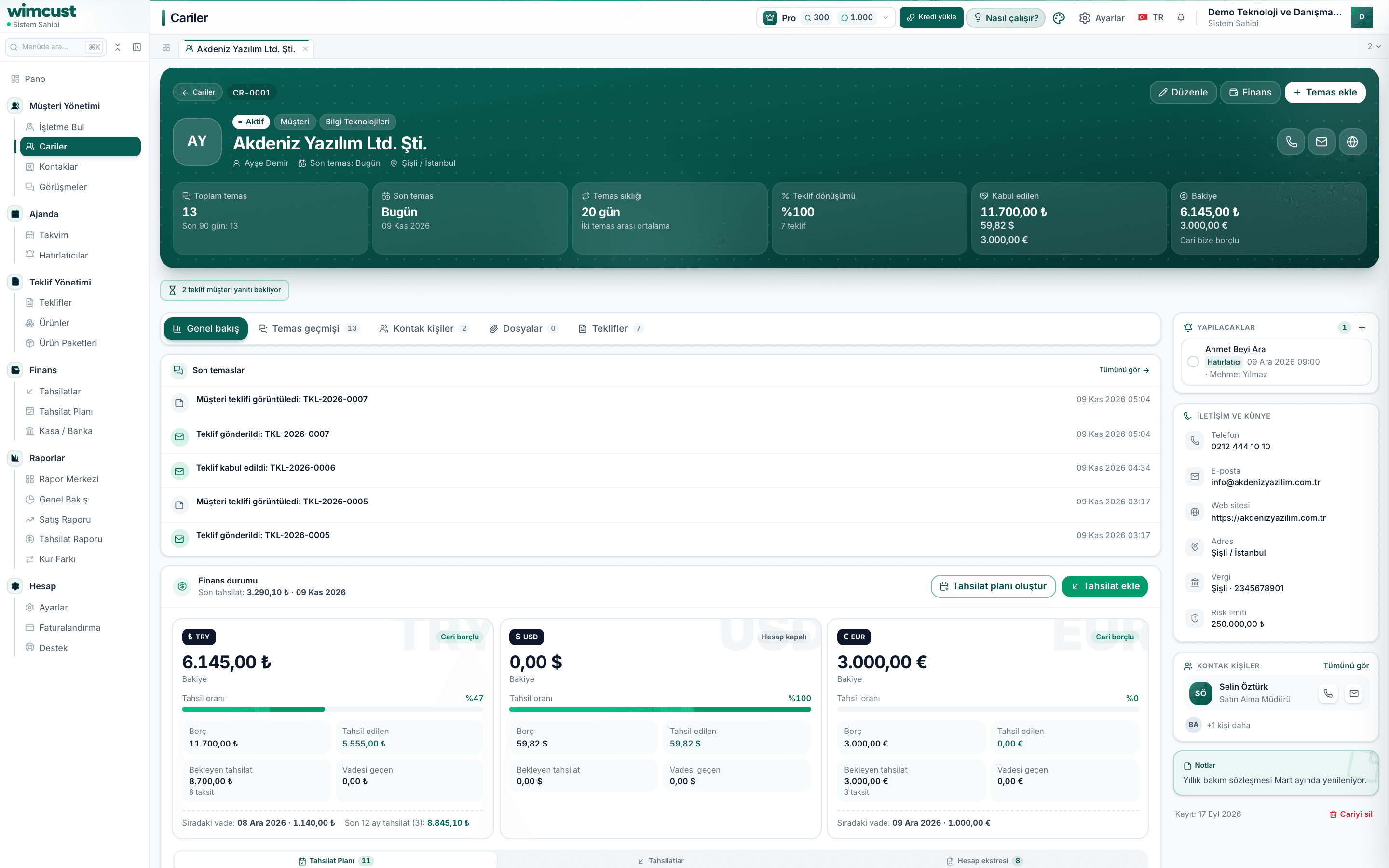
Winning Back Customers Who Have Gone Cold: A B2B Re-Engagement Guide
How to win back customers who have gone cold: spotting quiet accounts, last-contact tracking, re-engagement messages and habits that keep it from happening again.
Read the article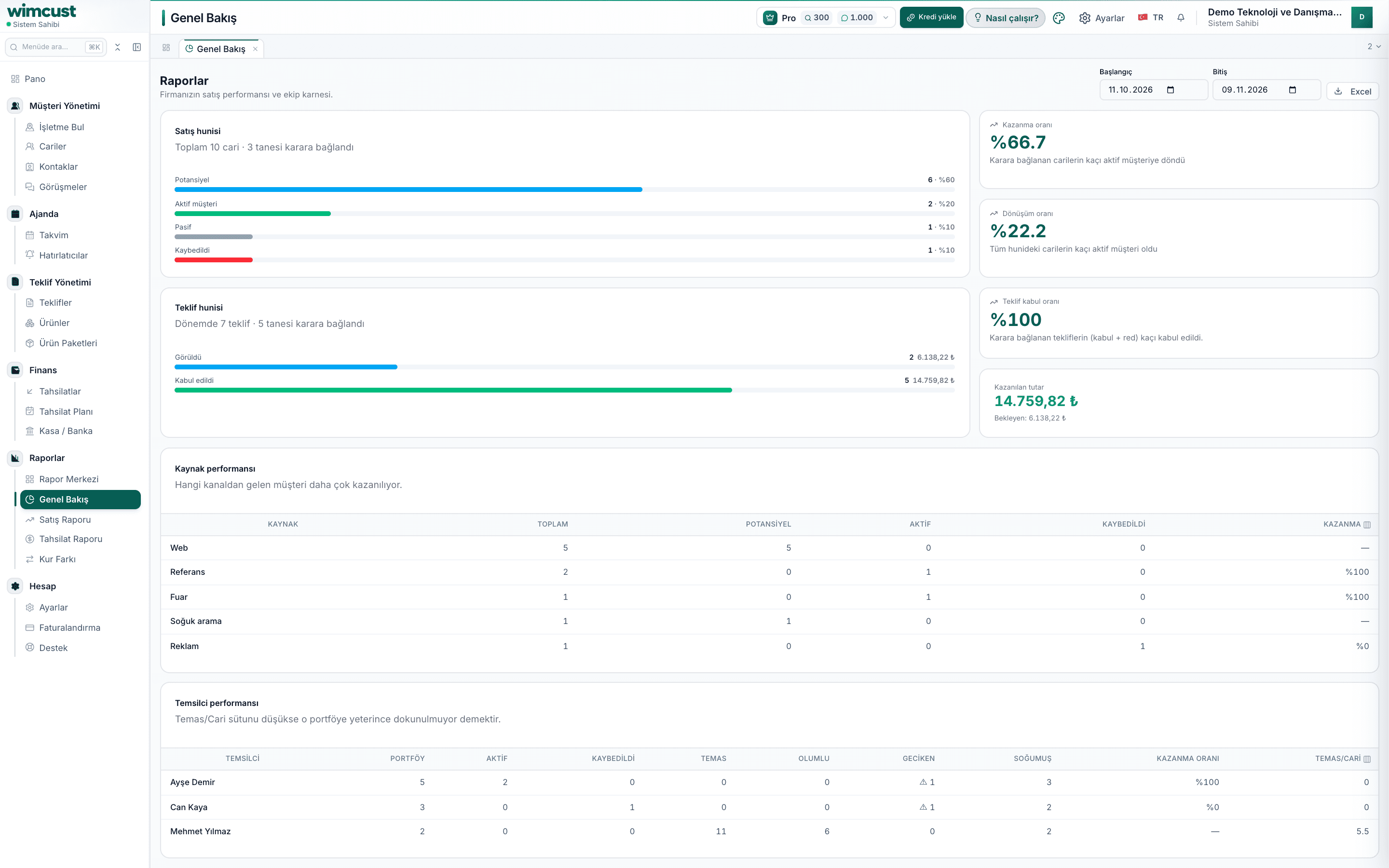
Sales Team Performance Tracking: Which Metrics to Watch
How to track sales team performance: activity, quote, conversion, revenue and collection metrics, the rep scorecard and fair measurement. A practical guide.
Read the articleSign up and find your first 60 prospects for free
Start today and find your first customer this week
The Starter plan is free forever. Open your account without a credit card and create your first customer card in minutes.